
How do I Setup the IPTV Smarters app on Android, iOS, macOS, Windows, Web Browser, or Smart TV devices?
Step 1: Start by downloading IPTV Smarters app through this URL : https://www.iptvsmarters.com/#downloads
Step 2: Open the app once downloaded and Enter the login details.
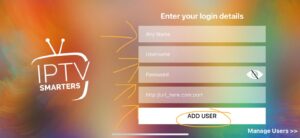
Step 3: Enter the login details that we have provided you after you get a subscription with us
Now Click on “ADD USER” to proceed to the next section.
Step 4: Wait some seconds.
Step 5: Now click on “Live TV” icon as depicted in the image via a red arrow.
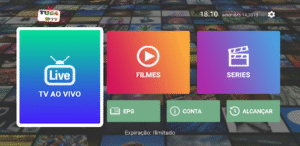
Step 6: Now you must select the channel group that you want to watch and proceed to the next section.
Step 7: Now you must click on the channel name and then double click on the small screen to turn into full screen as the final step.
Done
Smart TV (SAMSUNG & LG) / AMAZON FIRESTICK
Setup instruction for a Samsung/LG Smart TV or Amazon Fire Stick. IPTV.Shop service uses a media controller app called ‘Smart IPTV’, this app is free to use for a period of seven days, you will then be asked to make a one-time donation of € 5.49 (Euros) towards the Smart IPTV app development.
- In order to check if your Samsung/LG Smart TV or Amazon Fire Stick is compatible with the IPTV.Shop Service go to the Samsung or LG Smart TV app store screen and search for the ‘Smart IPTV’ app. If the app is not displayed on the main screen you may have to search for it in ‘All Apps’ or ‘Updates’.
- Launch the ‘Smart IPTV’ app.
- Make a note of the ‘MAC Address’ which is displayed on the screen.
- Go to http://siptv.eu/mylist/ from any web browser.
- Go to the section ‘Add external playlist links (URLs)’ and enter your ‘Mac’ address and the unique IPTV.Shop subscription URL into the ‘Link’ field.
- Ensure the ‘countries’ drop-down selection on ‘Various’.
- Check in the ‘Keep online’ checkbox.
- Click on the ‘Add Link’ button
- Restart the ‘Smart IPTV’ app or TV.
- In order to view channel groups, press the blue button on your remote control.
1 – Download Smart IPTV into your TV
( This is only for Samsung and LG Smart TV )
- Go to your TV apps store
- Search for Smart IPTV
- Install Smart IPTV and open Smart IPTV
Now you can see your MAC address on the right side of your screen
2- Add channels into Smart IPTV
- Go to www.siptv.eu/mylist/
- Add your MAC and your M3U Subscription URL
- Click on Add Link
PC/MAC (VLC SOFTWARE)
1- Download VLC ( Download URL https://www.videolan.org/vlc/index.html)
2 – Open VLC Player
3- Go to Media -> Open Network stream.
4- Add your Subscription URL we sent to you and press play
5- Wait till all the Channels load (this may take some time)
Choose a Channel and enjoy the show
APPLE (IPHONE/IPAD/APPLE TV)
Using SMARTERS Application
Step 1 Download SMARTERS from AppStore
Step 2 Write The Username / Password / URL To IPTV SMARTERS APPLICATION
Now you can enjoy our IPTV playlist
Using GSE SMART IPTV PRO
1- Download GSE SMART IPTV PRO
2- Go to the app and Click ‘Accept’ EULA rule
3- Click ‘Setting’ on left top corner
4- Find and click ‘Remote Playlists’ menu
5- Click ‘+’ button to add IPTV provider
6- Click ‘Add M3U URL’
STB EMULATOR
This tutorial will guide you through the simple setup instruction for STB Emulator.
‘STB Emulator’ can emulate the following IPTV set-top boxes.
| IPTV Set-top Box | Support |
|---|---|
| MAG 200 | Yes |
| MAG 245 | Yes |
| MAG 250 | Yes |
| MAG 260 | Yes |
| MAG 270 | Yes |
| MAG 275 | Yes |
| Aura HD | Yes |
STB Emulator Setup Instructions:
- Download ‘STB Emulator’ from the Google Play Store here.
- Install and Load the ‘STB Emulator’ app and you will see your ‘MAC address’ on screen.
- Tap near the ‘Top right corner’ and then click ‘Settings’ – the 4th icon from the right.
- Tap ‘Profiles’.
- Tap ‘Test portal’ to modify the existing profile or ‘Add profile’ to start a new one.
- Tap ‘STB Model’.
- Tap ‘MAG 250’ or whichever STB you wish to emulate.
- Tap ‘Portal settings’.
- Enter your ‘Portal URL’ (Check your activation e-mail) and click OK.
- Now tap ‘Screen Resolution’.
- Choose ‘1280×720’ (You can choose higher with internet speed 16+ Mbps).
- Exit the app and restart.
- You will now see your channel list.
Troubleshooting STB Emulator
If you have any problems viewing the Channels please follow this recommended fix:
Restart your App, Device/Box, and Wi-Fi Router.
MAG250/254/256
Connect MAG DEVICE to TV and Internet. Then do as follows
- Go to: Settings—> System Settings —> Servers—>Portals
- Set Portal 1: HYPO TV
- Set Portal 1 URL ( see your E-mail )
- Set Portal 2 Name leave this empty add this only If you order the second subscription
- Set Portal 2 URL leave this empty add this only If you order the second subscription
- Save everything
- Reboot device
- After the box is restarted, wait until the TV screen shows the channels.
